Store Setup
The first thing to do after activating your license is configure your store information. Go to Settings → General.
Store Information
Fill in your store details. These are used on receipts and in integration sync operations.
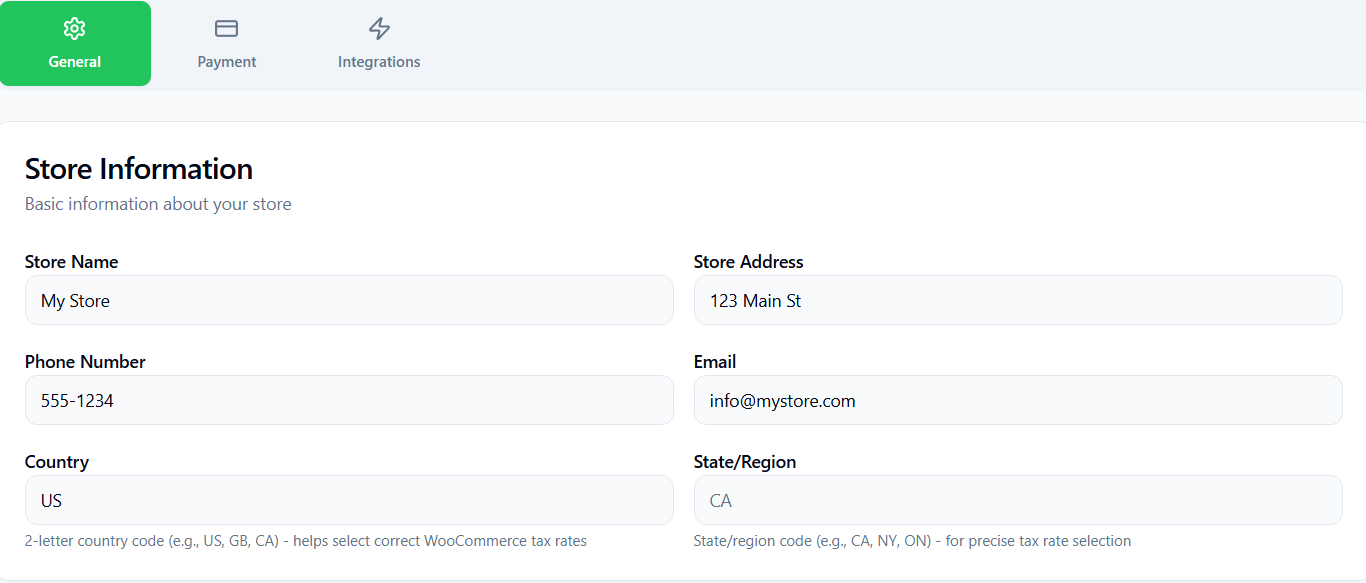
| Field | Description |
|---|---|
| Store Name | Your business name as it appears on receipts. |
| Address | Physical address of the store. |
| Phone | Contact phone number. |
| Contact email address. |
Country & State
Set your store's country and state/region using standard codes (e.g., PT, GB, US). These are used when pulling tax rates automatically from WooCommerce.
Settings are saved automatically 800 ms after you stop typing. You do not need to press a Save button.
Currency
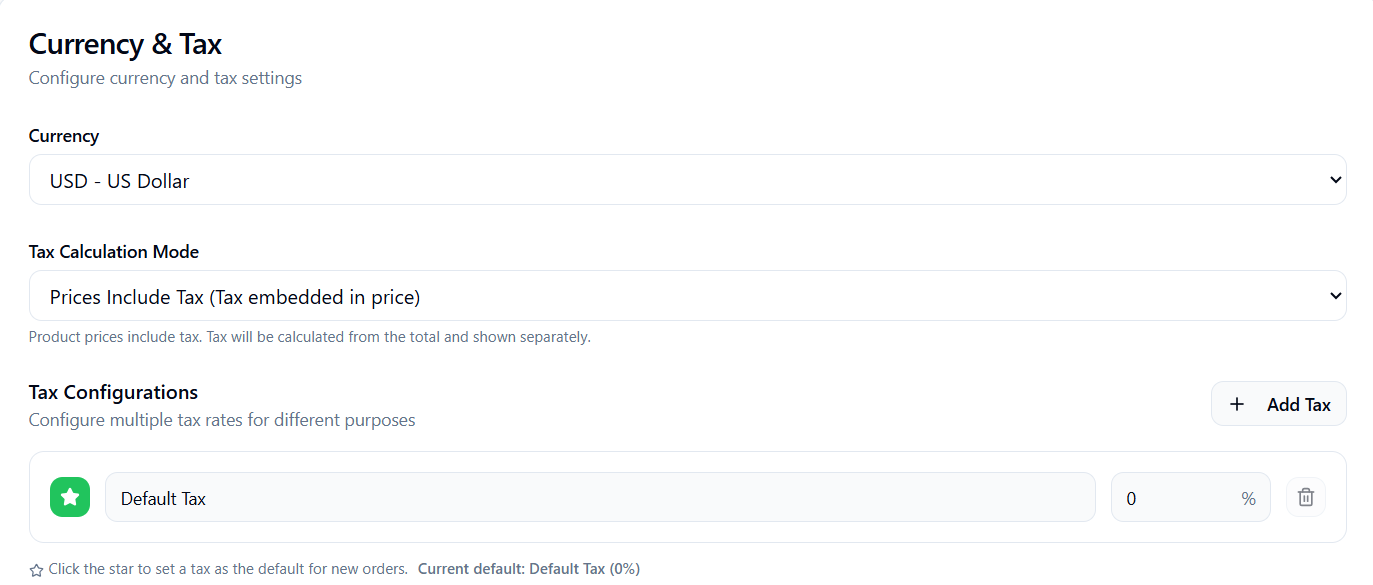
Select the currency used across all transactions. The following currencies are supported:
- EUR — Euro
- USD — US Dollar
- GBP — British Pound
- CAD — Canadian Dollar
- AUD — Australian Dollar
- CHF — Swiss Franc
- JPY — Japanese Yen
- CNY — Chinese Yuan
Changing the currency after products have been created does not convert existing prices. Update product prices manually after changing the currency.
Tax Configuration
Prices Include Tax
This toggle controls how prices are interpreted throughout the app:
- On (Inclusive) — product prices already include tax. The tax amount is calculated backwards from the price.
- Off (Exclusive) — product prices are net prices. Tax is added on top at checkout.
Tax Rates
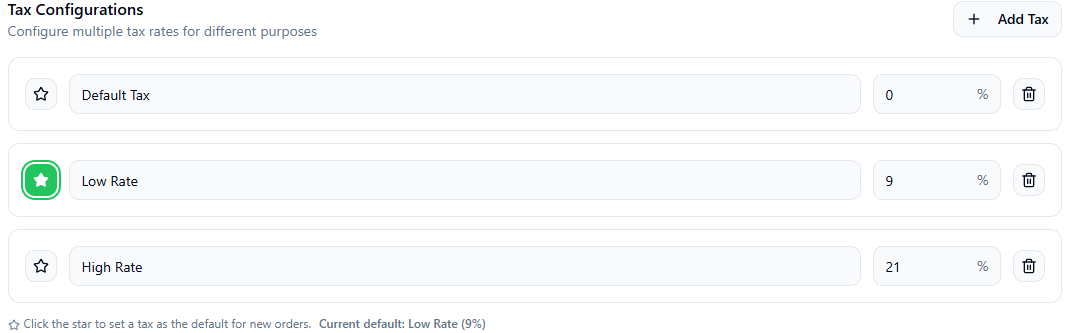
You can define multiple tax rates, for example a standard rate and a reduced rate.
Add a tax rate
Click Add Tax Rate, enter a name (e.g., Standard VAT) and a percentage (e.g., 23).
Set the default
Mark one rate as the Default. New products will use this rate automatically.
Save
Changes are saved automatically. At least one tax rate must exist at all times.
If you connect WooCommerce, tax rates are imported automatically from your WooCommerce store. Imported rates are labelled with their source and can still be edited locally.