Revolut Terminal
Accept in-person card payments using a Revolut card reader. Akantio POS pushes payment requests directly to your Revolut terminal — no manual action needed on the POS side after pressing Start Payment.
Prerequisites
- A Revolut Business account with Merchant API access.
- At least one Revolut card terminal registered to your account.
- A store location created in your Revolut Merchant account (or you can create one directly from the POS).
Step 1 - Set up Revolution Terminal
Enable the option Pay at Counter in your Revolut Terminal.
On the Revolut Terminal, go to More > Settings > Checkout.
If not already enabled, turn on Pay at Counter.
Step 2 — Enter Your API Key
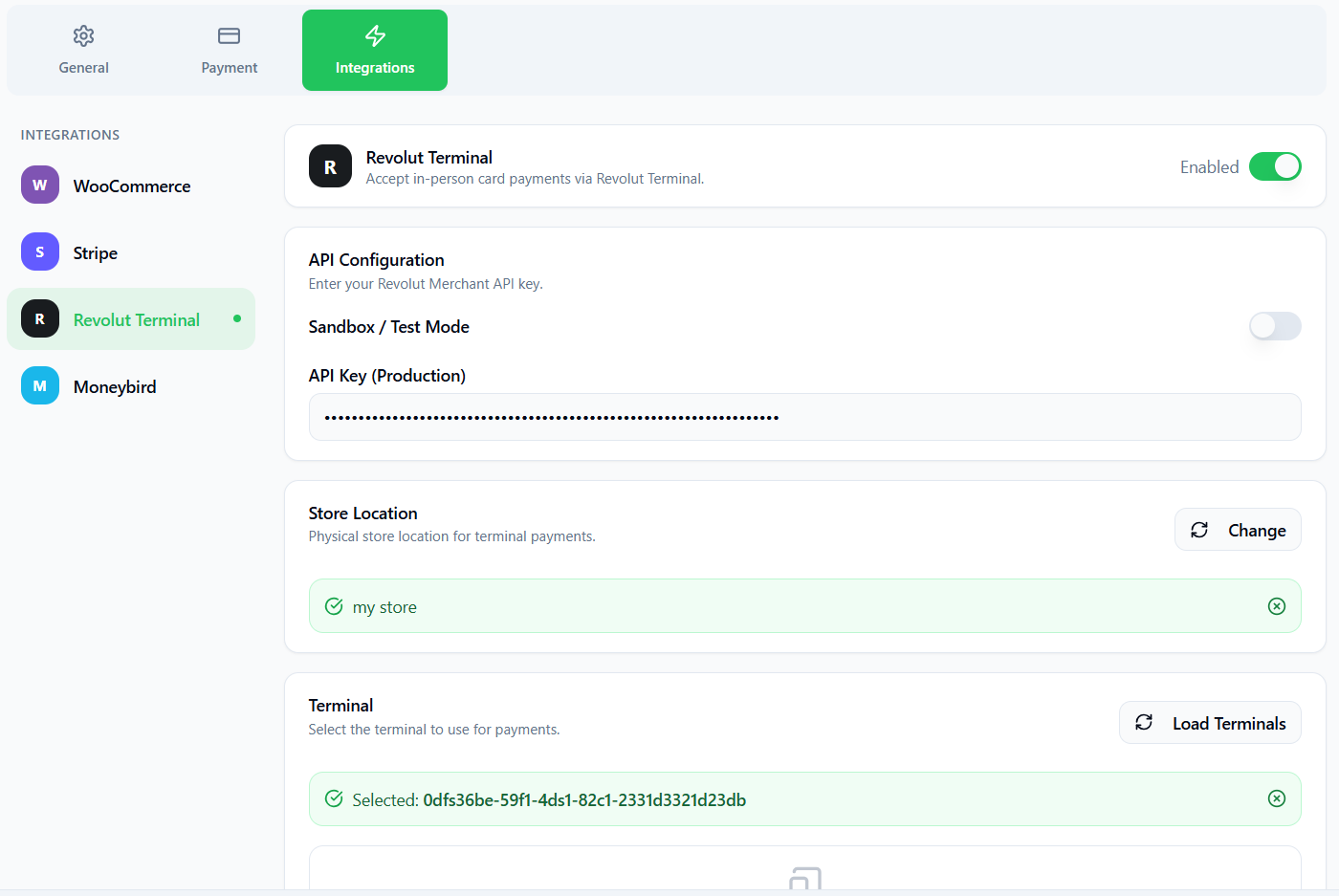
Go to Settings → Integrations → Revolut Terminal.
Choose Sandbox or Production
Enable Sandbox Mode to test without processing real payments. Disable it when going live.
Enter your API Key
Paste your Revolut Merchant API key. Find it in the Revolut Business dashboard under Settings → API → Merchant API.
Step 3 — Configure a Location
Revolut requires a registered store location to process POS payments.
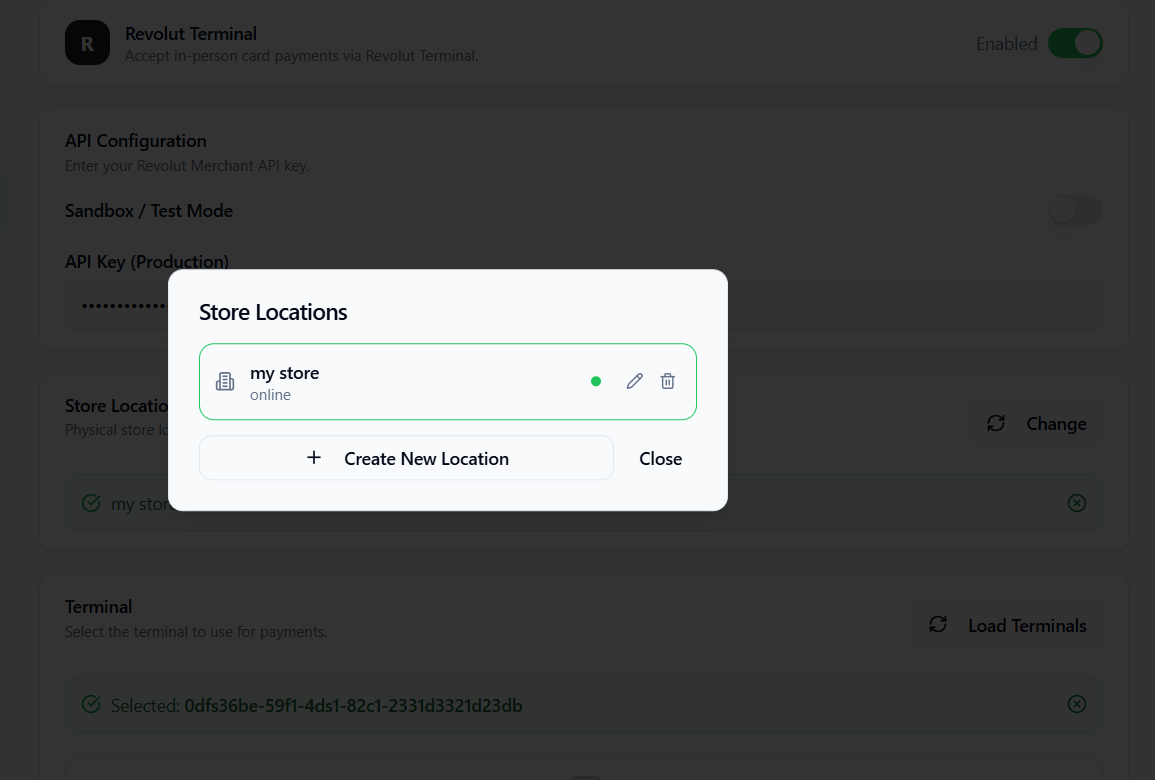
Open Locations
Click Manage Locations to view or create locations linked to your Revolut account.
Create a location (if needed)
Click New Location and fill in: Name, Street Address, City, Postcode, Country Code (e.g., PT). Opening hours are optional. Coordinates are resolved automatically from the address.
Select the active location
Click Select next to the location your terminal is physically at. The selected location is shown in the integration summary.
Step 4 — Select a Terminal
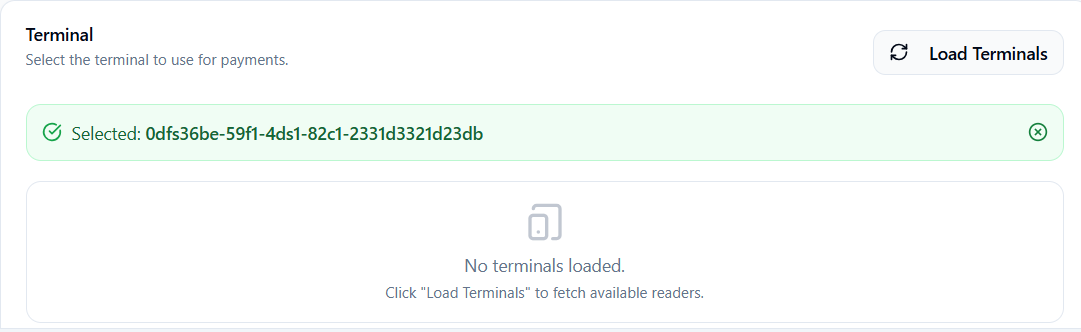
Load terminals
After selecting a location, click Load Terminals. The POS fetches all terminals associated with that location.
Select the active terminal
Click the terminal you want to use. The list shows device type, serial number, online/offline status, and battery level.
Step 5 — Enable the Payment Method
Go to Settings → Payment and enable Revolut Terminal. It will now appear at checkout.
Taking a Payment
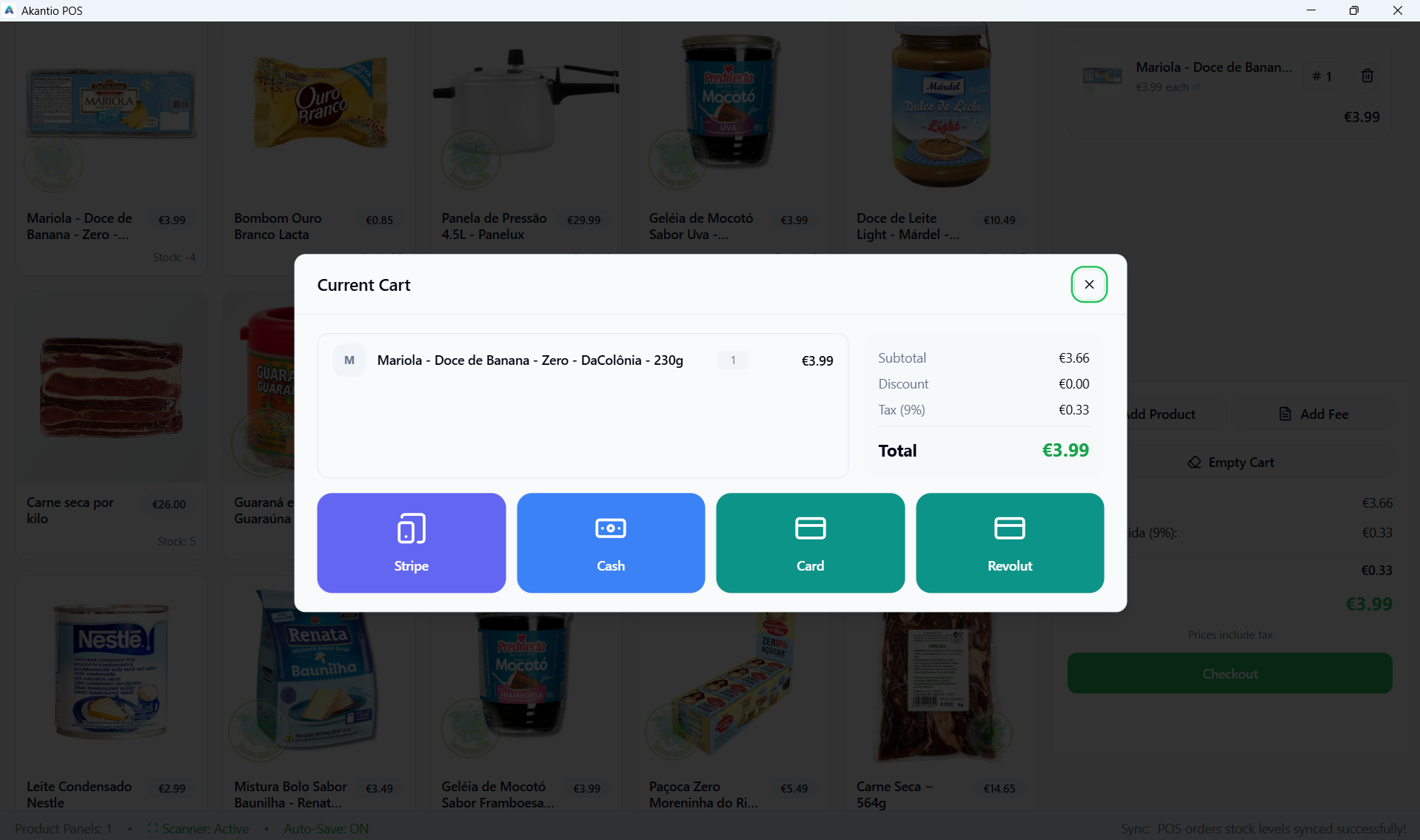
- Add items to the cart and proceed to checkout.
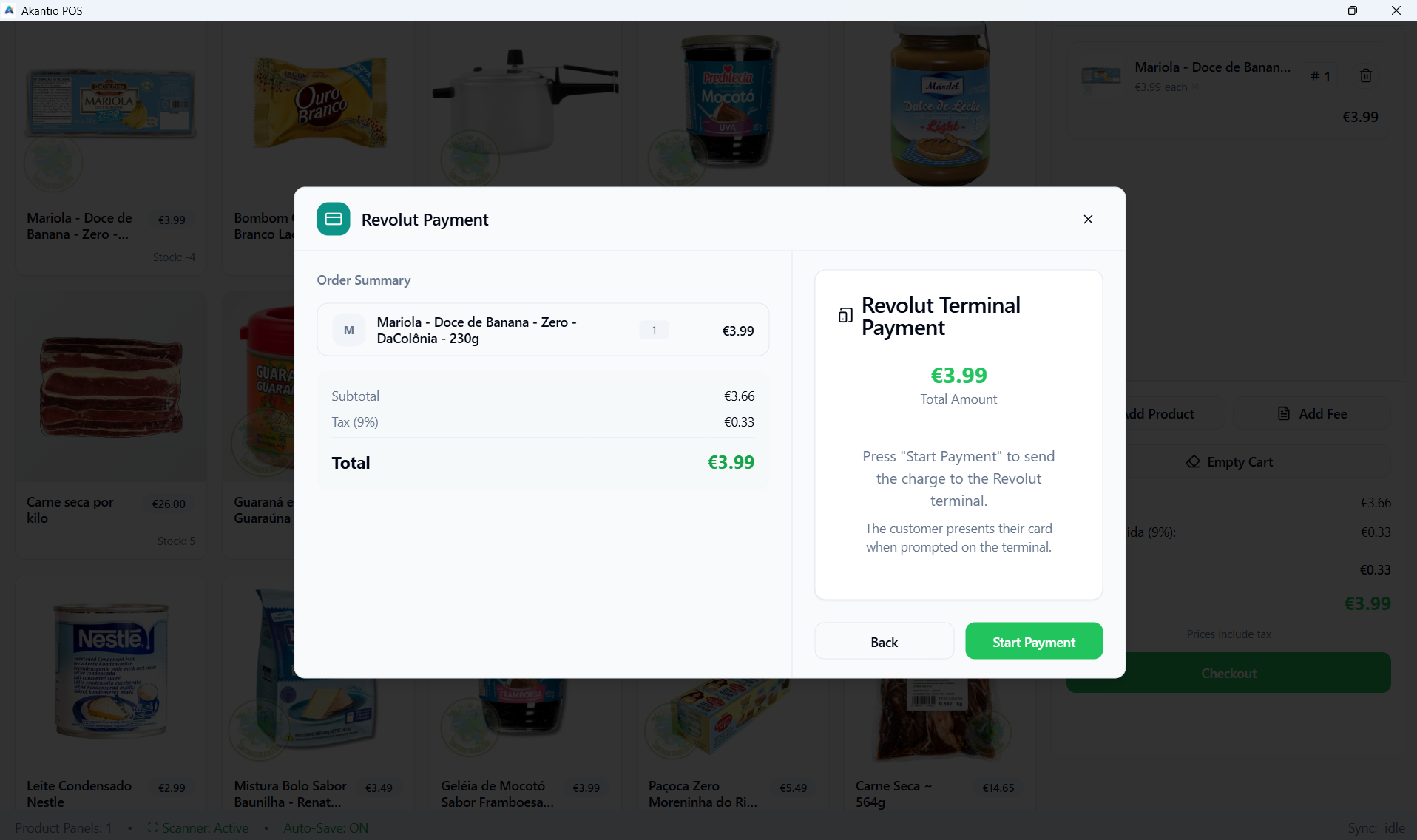
- Select Revolut Terminal.
- Click Start Payment. The charge is pushed to the terminal.
- The customer taps or inserts their card on the terminal.
- After approval, the POS shows a confirmation screen for 6 seconds, giving the customer time to collect a receipt from the terminal.
- The POS completes the order automatically.
Click Cancel while waiting for the terminal. The pending payment intent is cancelled on the Revolut side and the terminal returns to its idle state. If no action is taken within 60 seconds, the payment times out and the terminal is also notified to cancel.