WooCommerce Integration
Connect Akantio POS to your WooCommerce store to sync products, prices, stock levels, and tax rates automatically.
Prerequisites
- A live WooCommerce store accessible over HTTPS.
- Administrator access to generate REST API keys.
Step 1 — Generate API Keys in WooCommerce
Open WooCommerce settings
In your WordPress dashboard go to WooCommerce → Settings → Advanced → REST API.
Add a key
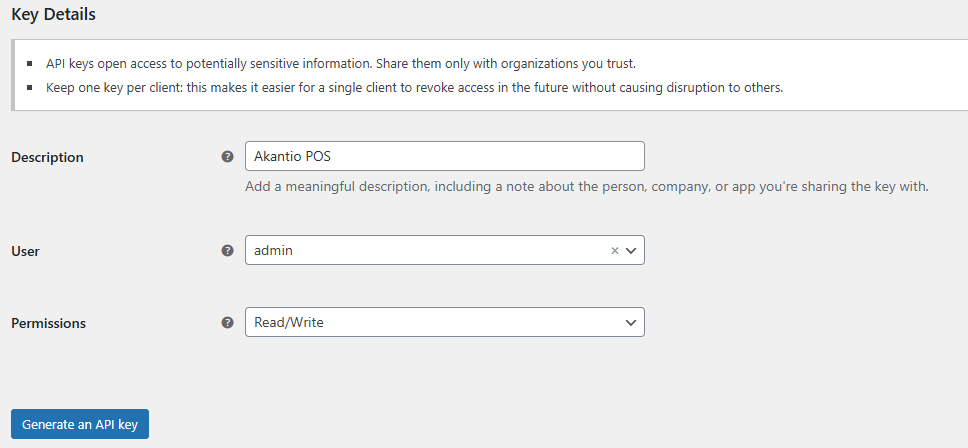
Click Add key. Set a description (e.g., Akantio POS), set User to an administrator account, and set Permissions to Read/Write.
Copy the credentials
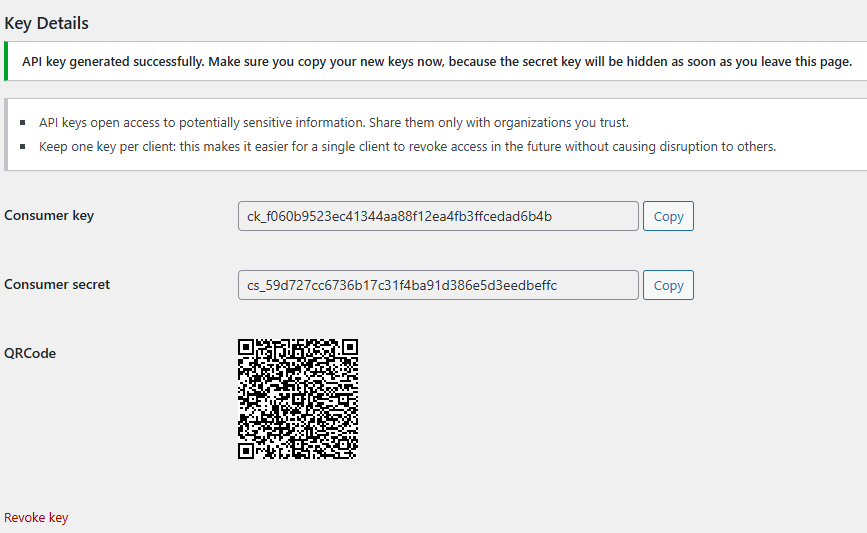
After clicking Generate API key, copy the Consumer Key and Consumer Secret. These are only shown once.
Step 2 — Connect in Akantio POS
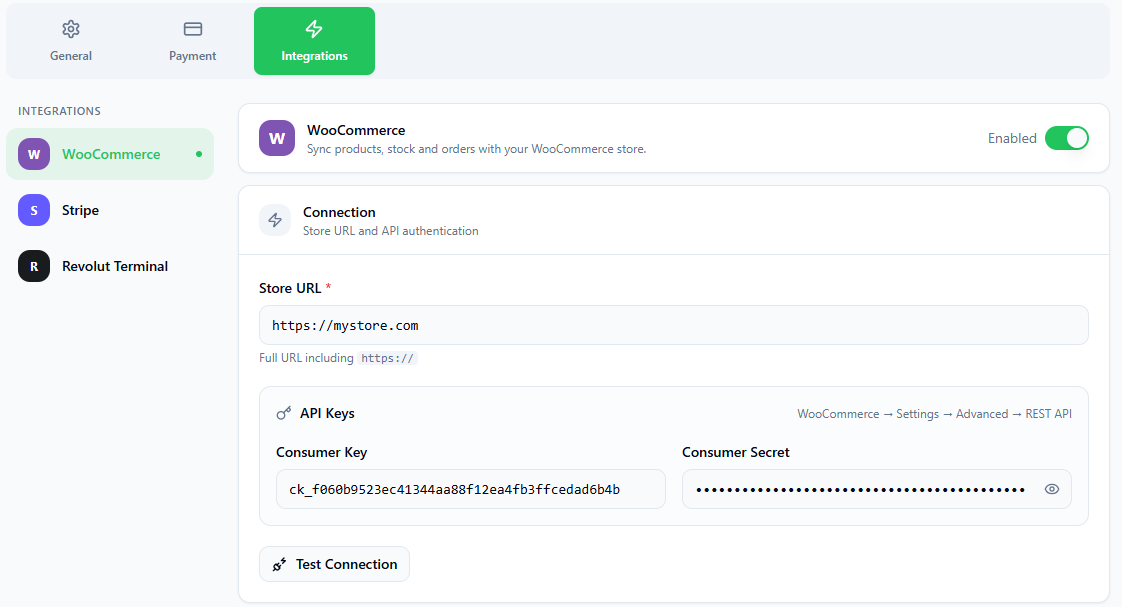
Go to Settings → Integrations → WooCommerce.
Enable the integration
Toggle the Enable WooCommerce Integration switch.
Enter your store URL
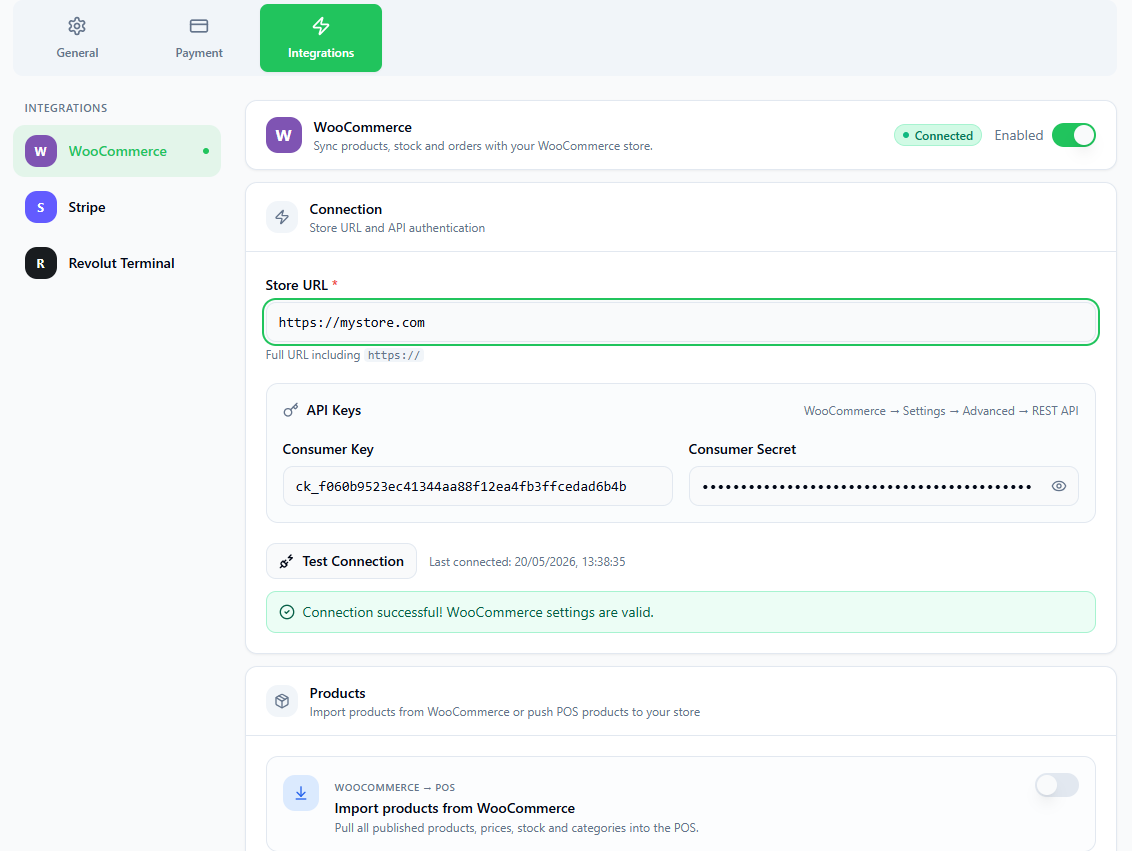
Type the full URL of your WooCommerce store, e.g. https://mystore.com. HTTPS is required.
Enter Consumer Key & Secret
Paste the credentials you copied in the previous step.
Test Connection
Click Test Connection. A green confirmation confirms successful authentication.
Product Sync
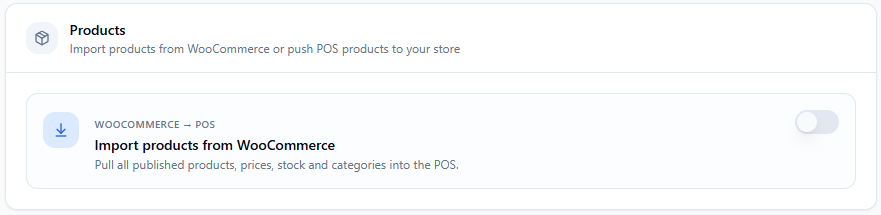
Once connected, Akantio POS can import your WooCommerce product catalogue.
- Products, prices, stock quantities, and categories are imported.
- Tax rates configured in WooCommerce are also imported automatically.
- You can set a sync interval (in minutes) for automatic periodic syncing.
- Click Sync Now to trigger an immediate sync.
How to enable the product sync:
Enable the Product Sync
Toggle the Enable Product Sync switch.
Set the Sync Interval
Set the sync interval in minutes.
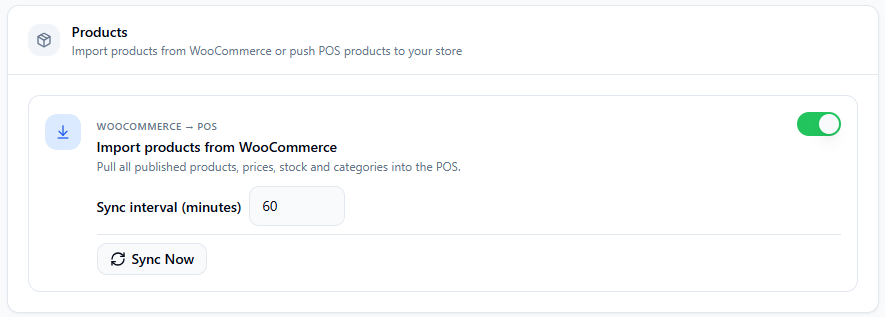
The product sync can take a few minutes on the first run, depending on the number of products in your WooCommerce store. Keep a eye in the status bar at bottom of the page for the sync status.
Stock Sync
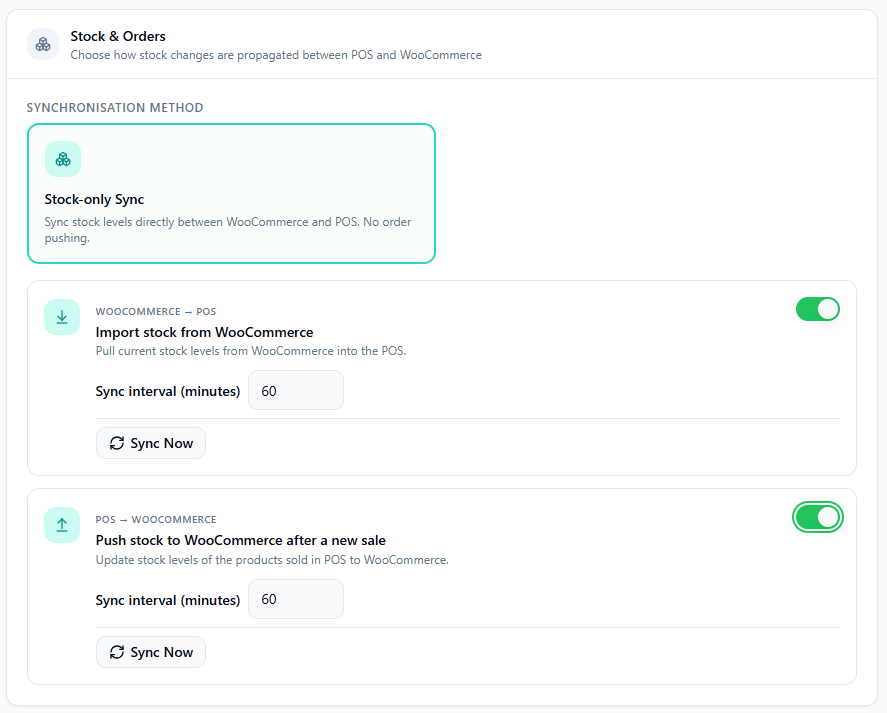
Stock levels are kept in sync between WooCommerce and the POS in both directions:
- Import from WooCommerce — pulls current stock levels on a configurable interval.
- Push to WooCommerce — after each POS sale, stock is decremented in WooCommerce automatically.
Resetting Synced Data
If you need to start fresh, the Reset Synced Data button removes all products and tax rates that were imported from WooCommerce. Manually created data is not affected.
Resetting synced data permanently removes all WooCommerce-imported products from the POS. This cannot be undone. A full sync after the reset will re-import them.