Stripe Terminal
Accept in-person card payments using a Stripe card reader. Akantio POS supports both a simulated reader (for testing) and physical Stripe Terminal devices.
Prerequisites
- A Stripe account with Terminal access enabled.
- For production: a supported Stripe Terminal reader (e.g., BBPOS WisePOS E, Stripe Reader M2).
Step 1 — Enter Your API Key
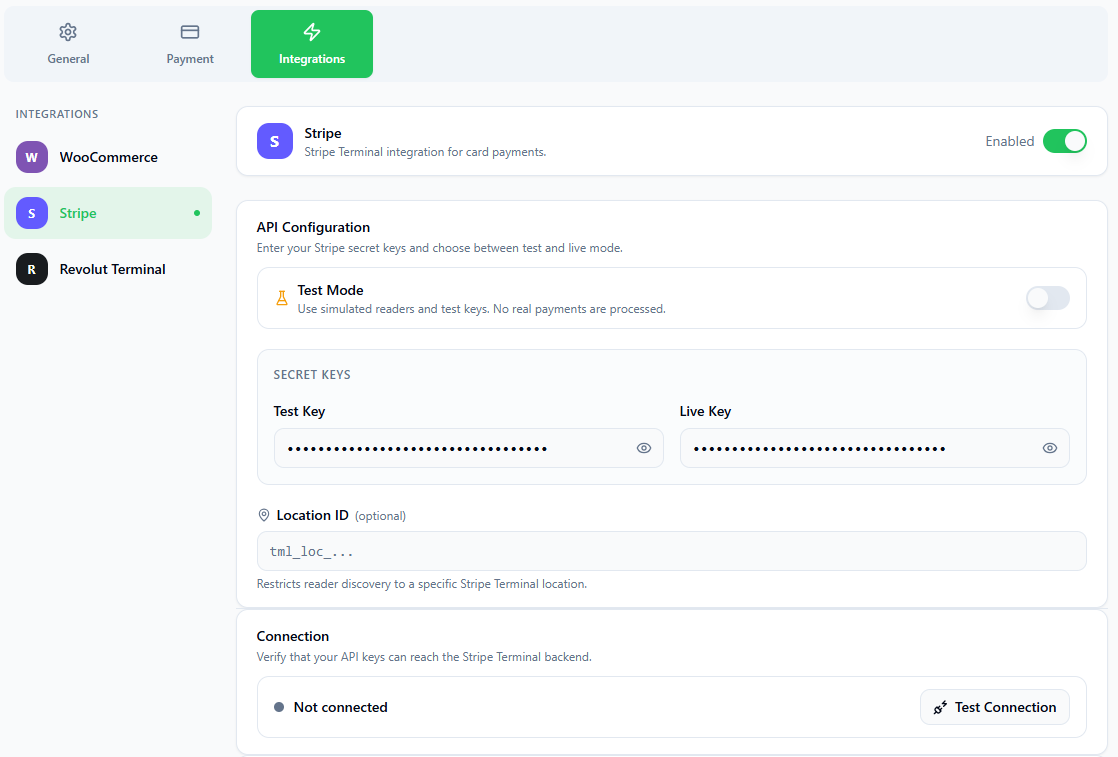
Go to Settings → Integrations → Stripe Terminal.
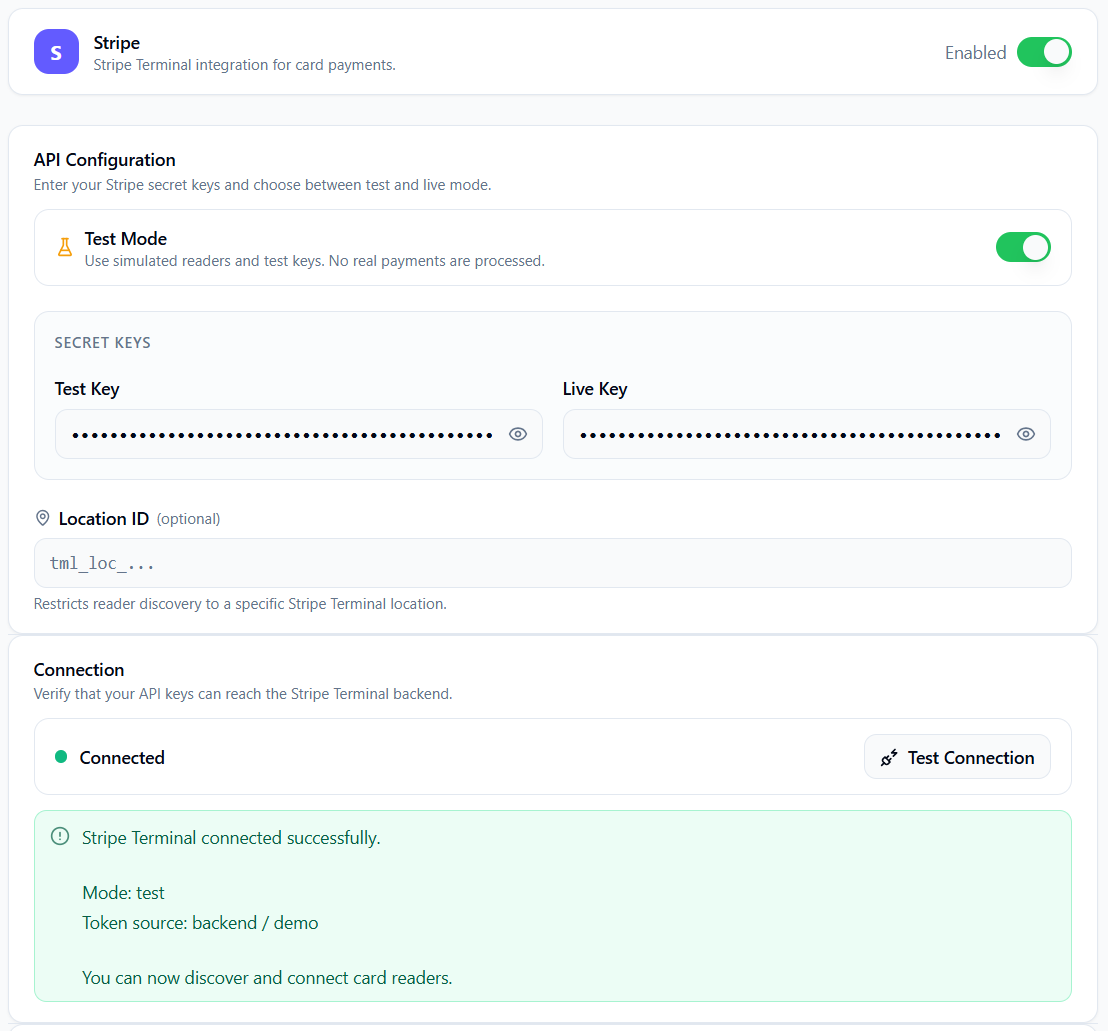
Choose Test or Live mode
Enable Test Mode to use simulated card readers without real money. Disable it for production payments.
Enter your Secret Key
Paste your Stripe secret key. Test keys start with sk_test_; live keys start with sk_live_. Find these in your Stripe Dashboard under Developers → API Keys.
Test the connection
Click Test Connection. A successful test shows a green status indicator.
Make sure to disable the Test Mode before using the integration in production. Otherwise, the order will be processed but no real money will be charged.
Step 2 — Connect a Reader
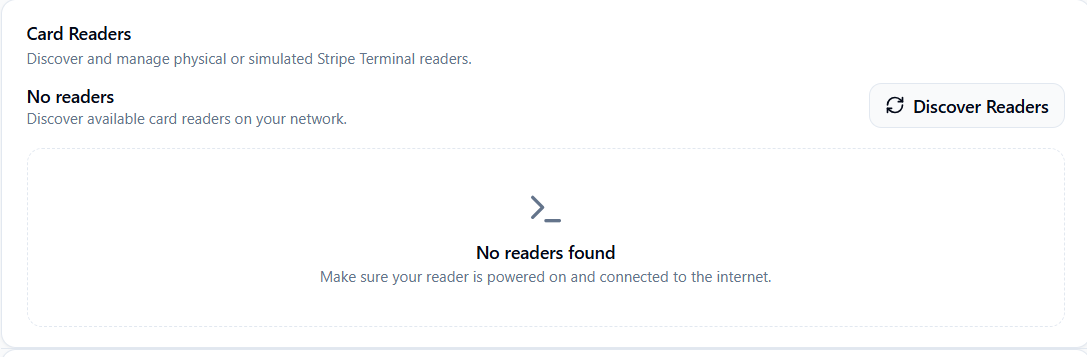
Discover readers
Click Discover Readers. In Test Mode, a simulated reader appears. In Live mode, all readers registered to your Stripe account on the same network are listed.
Connect
Click Connect next to your reader. The status indicator changes to Connected.
Enable Test Mode and use the simulated reader to test the full payment flow without any hardware. The simulated reader accepts any test card number provided by Stripe.
Step 3 — Enable the Payment Method
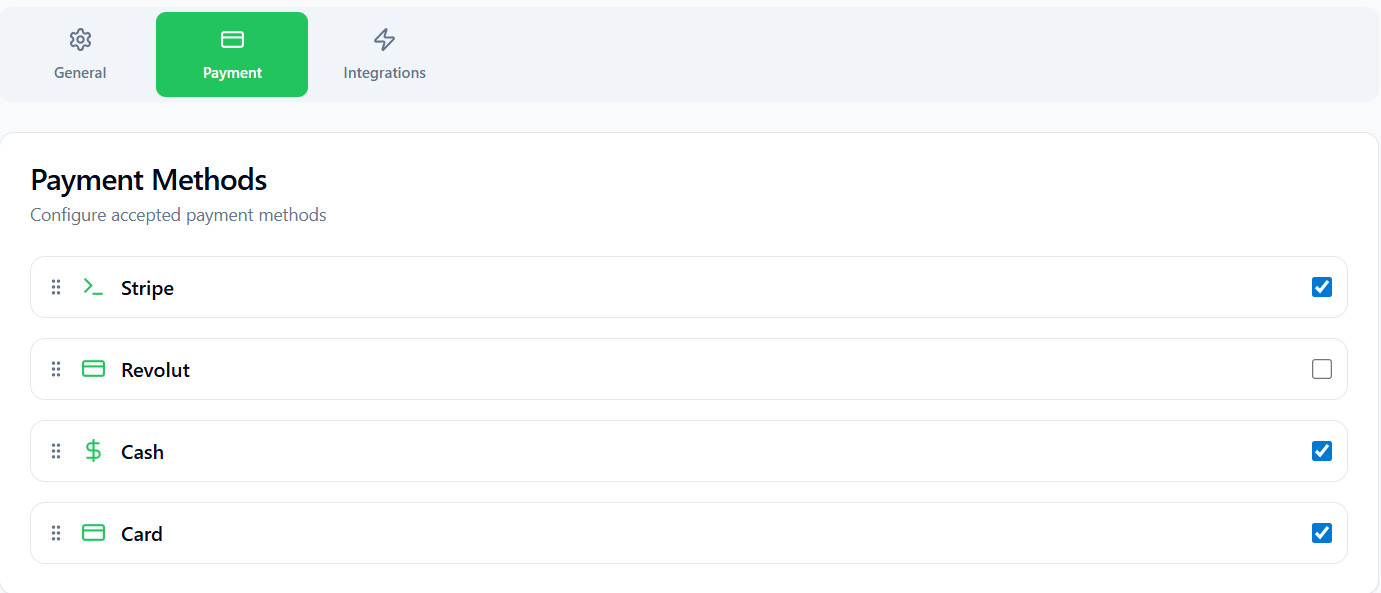
After the reader is connected, go to Settings → Payment and enable Stripe. It will now appear as an option during checkout.
Taking a Payment
- Add items to the cart and proceed to checkout.
- Select Stripe as the payment method.
- The charge is sent to the connected reader.
- The customer taps or inserts their card.
- The POS confirms success and creates the order.
Troubleshooting
| Issue | Solution |
|---|---|
| No readers found | Ensure the reader is powered on, connected to the same network, and registered in your Stripe Dashboard. |
| Connection fails | Check that the API key is correct and that your Stripe account has Terminal enabled. |
| Payment declined | In Test Mode, use one of the Stripe test card numbers. In Live mode, check the card issuer message in the Stripe Dashboard. |